

Inviting your team
Add staff members, assign their roles, and remove access when someone leaves.
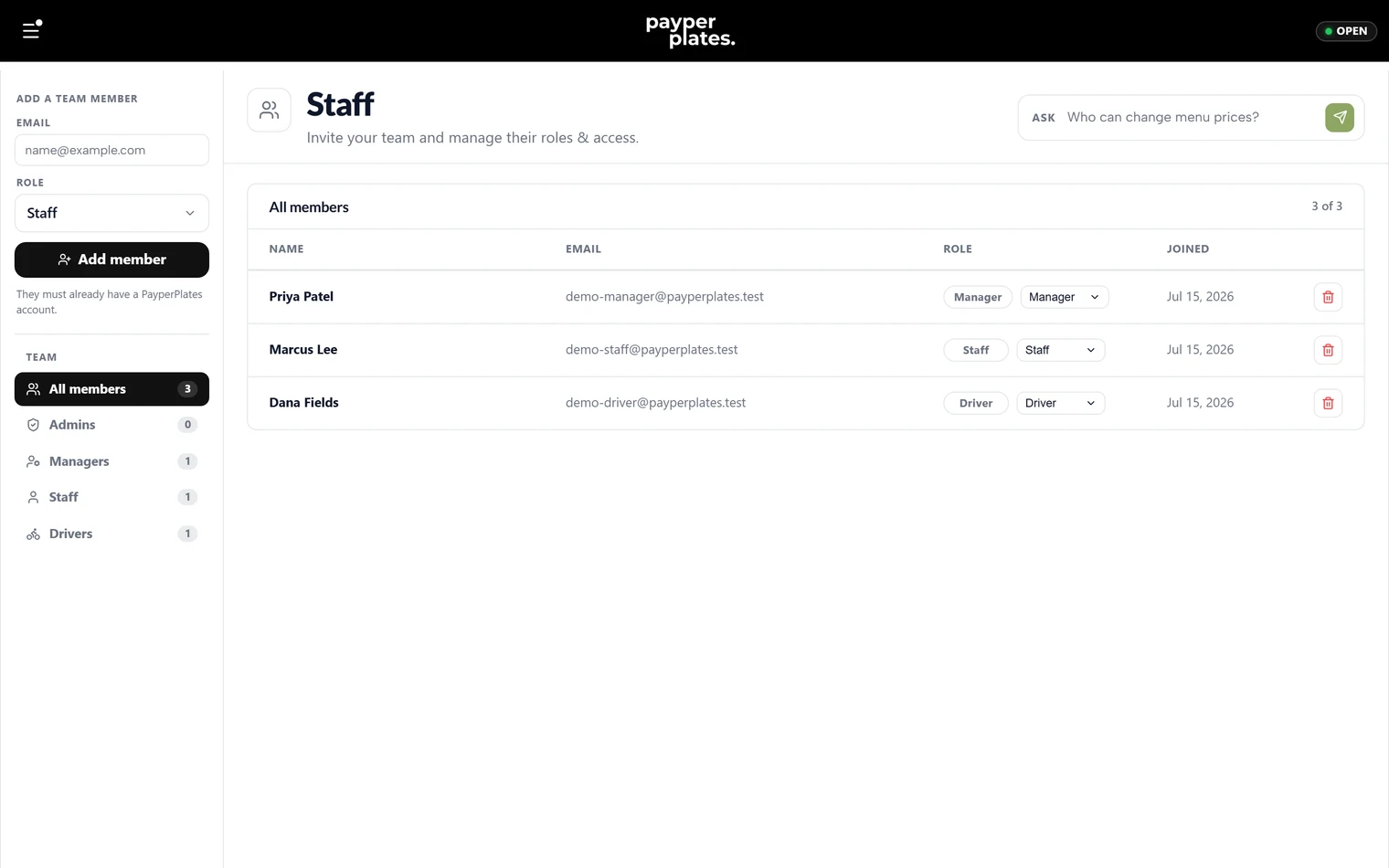
You manage your team on the Staff page in your admin dashboard. Only admins can add, change, or remove staff. This guide covers adding a member, setting their role, and removing access.
Add a member
Invite a team member by their email address and choose the role they should have. New members default to the Staff role, which is the right level for most of your team — change it if they need more. See Roles and permissions for what each role can do.
Once added, the member can sign in and reach the parts of the dashboard their role allows.
Change a role
You can change anyone's role from the Staff page. Role changes are staged first and applied together when you save and confirm, so you can adjust several people at once and review before committing. This is how you promote a trusted staff member to manager, or move someone to the driver role.
Filter your team
As your team grows, filter the staff list by role — all members, admins, managers, staff, or drivers — to find who you are looking for quickly.
Remove a member
When someone leaves, remove them from the Staff page so they lose access right away. Like role changes, removals are staged and confirmed together with your other changes. Removing a member is the right move whenever someone no longer works for you — do not leave old accounts with access.
The owner
Your restaurant has an owner account, which always keeps admin access. Everyone else's access is managed here by your admins.
A note on roles and drivers
Adding someone as a Driver gives them access to the driver portal for deliveries, not the admin dashboard. If a person both works in the shop and delivers, give them the role that matches their main job — a staff member can still be assigned deliveries through the Driver Hub.