

Managing orders
Run service from the Orders board: choose a view, work tickets through to completion, pause the kitchen, and tune prep-time estimates.
The Orders board is where you run service. It works as a kitchen display: tickets you can read from across the kitchen, a live timer on each, and one-tap actions to move orders forward.
The board
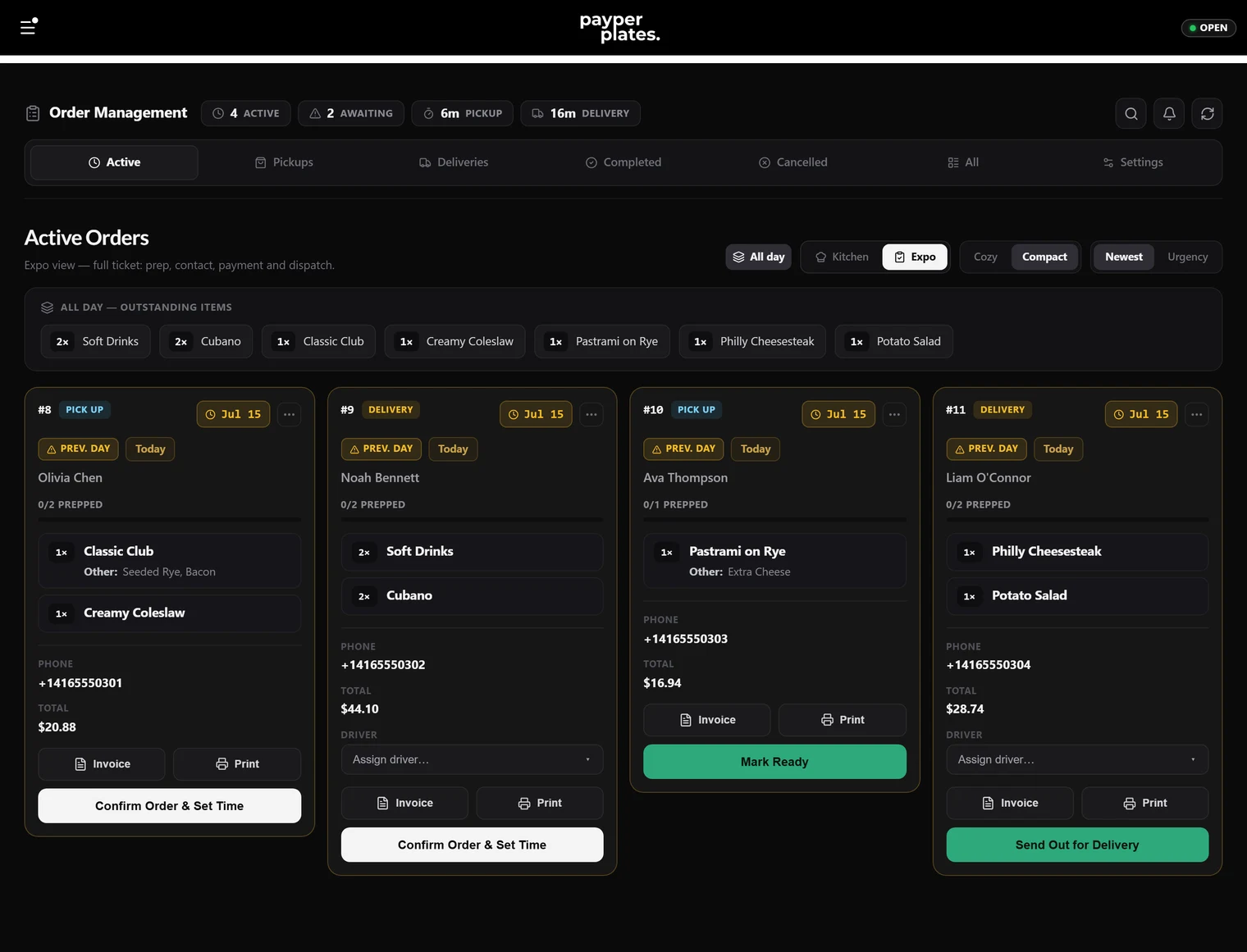
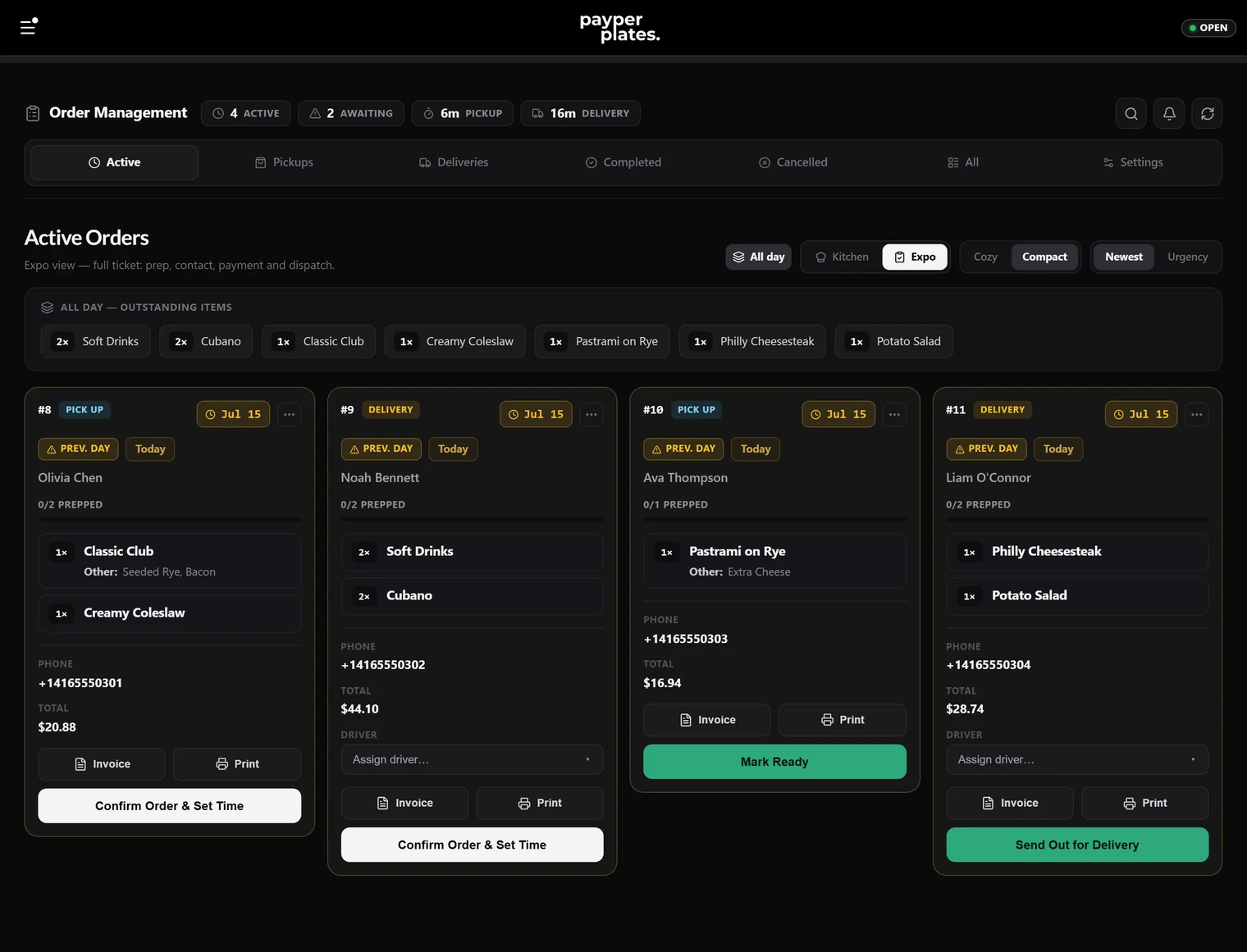
The board shows your active orders, the ones still pending, confirmed or being prepared. Choose how it looks:
- View: Kitchen is food-first and time-first, with front-of-house details hidden. Expo shows the full ticket, with prep, customer contact, payment and dispatch details, for whoever runs expo or delivery.
- Sort: Urgency puts the tickets that need attention first. Newest puts the latest first.
- Density: Cozy for larger tickets, Compact to fit more on screen.
On each ticket you can tap items off as they're made, so a big order's progress shows at a glance. Scheduled orders waiting for a decision collect in the Preorder inbox. See Preorders.
Working an order
- Accept a pending order. Accepting gives the customer a prep estimate, worked out from your timing settings (below). Adjust it if the order is unusually big or small.
- Prepare it. Tap items as they're done.
- Mark it ready or out. Mark pickup orders Ready. Mark delivery orders Out for delivery, and assign a driver or courier from the Driver Hub. See Delivery and drivers.
- Complete it once it's handed off or delivered.
See The order lifecycle for what each stage means.
Kitchen settings
The board's kitchen settings hold the controls for the whole shift:
- Kitchen Status → Pause new orders: holds all incoming orders while the kitchen catches up. Resume when you're ready.
- Order View: the view, sort and density choices above.
- Timing Configuration: how prep estimates are worked out. Service mode speeds up or slows down every estimate. Mins per item and Min order time set the base calculation.
- Manager PIN: set a 4–6 digit PIN that must be entered to cancel or reject an order. Without one, anyone signed in on the device can cancel orders. The same PIN unlocks other manager-only actions, such as refund overrides and Open & Close corrections.
When you get slammed
If tickets are stacking up, raise your prep time so new customers get a wait you can actually hit. Use the Too busy? quick action, or tell the assistant "set prep time to 45 minutes". Lower it again when you catch up. If you need a complete break, pause new orders from Kitchen Status.
Cancelling an order
If you can't fulfil an order, cancel it from the order and give a reason. If a manager PIN is set, you'll need to enter it. Cancelling releases any card hold that hasn't been charged yet and puts the items' stock back.
Cancelling doesn't refund a customer who has already been charged. Issue the refund as well. See Refunds and cancellations.
Order details
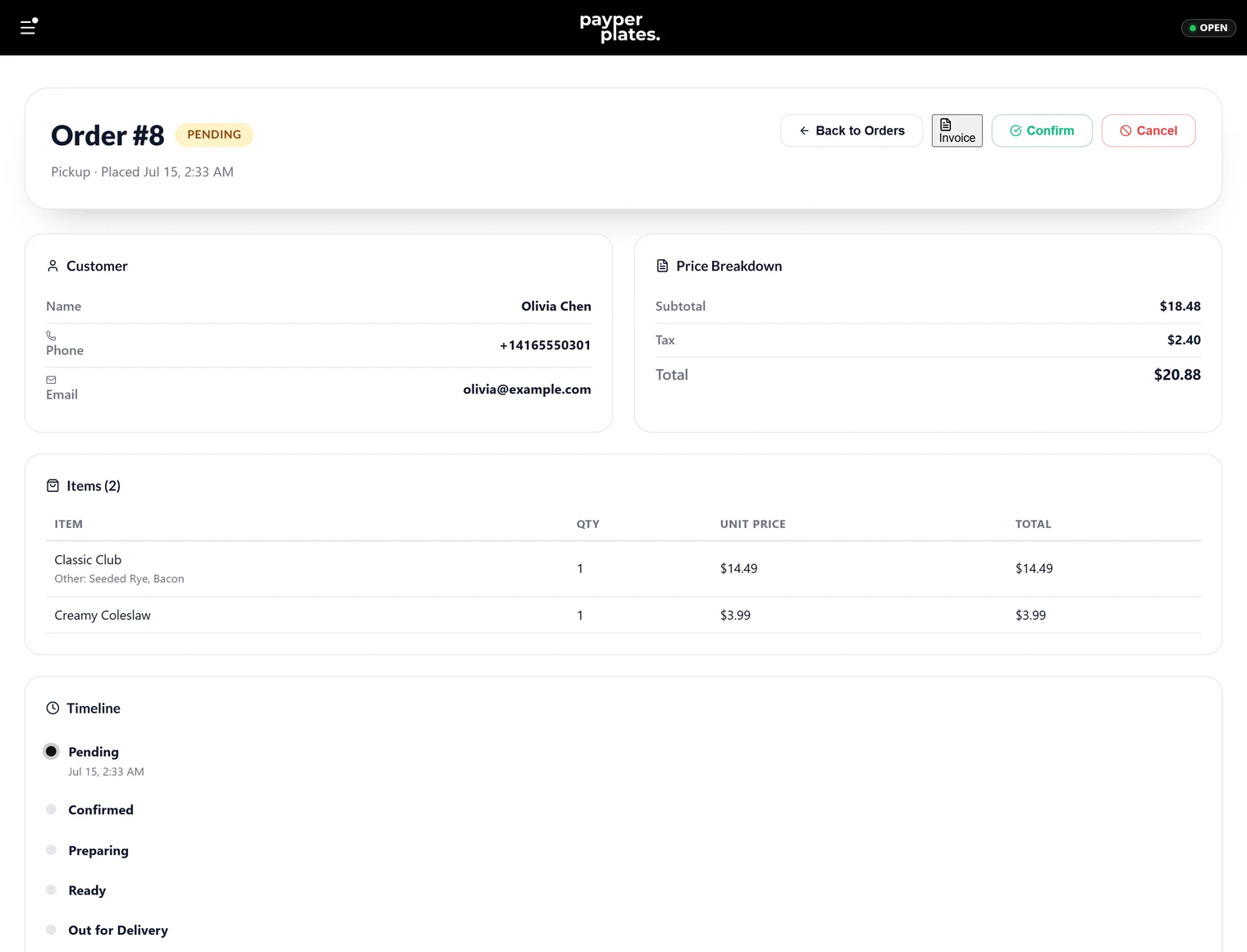
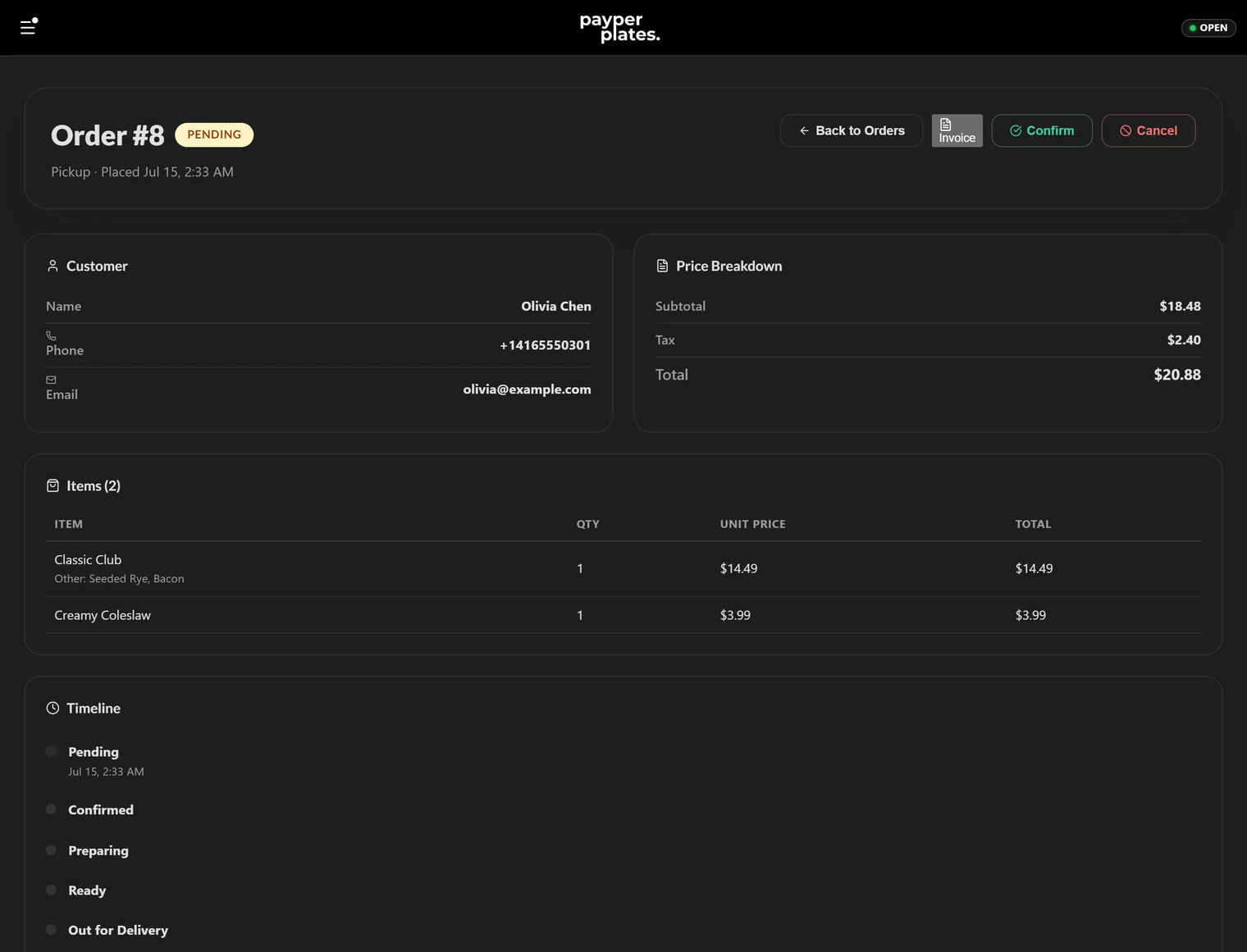
Open any order to see the full ticket: every item and option, the customer's contact details, the payment and its refund status, the pickup or delivery details, and its timeline from placed to completed.