

Categories
Group your menu into sections and control the order customers see them in.
Categories are the sections of your menu — Appetizers, Mains, Pizzas, Drinks, Desserts. Every item belongs to a category, and categories set how your menu is grouped and ordered on the storefront. You manage them in Inventory.
Create a category
Add a category and give it a clear, customer-facing name. Think about how your customers browse: a short list of broad sections is easier to scan than a long list of narrow ones. You can always split or merge later.
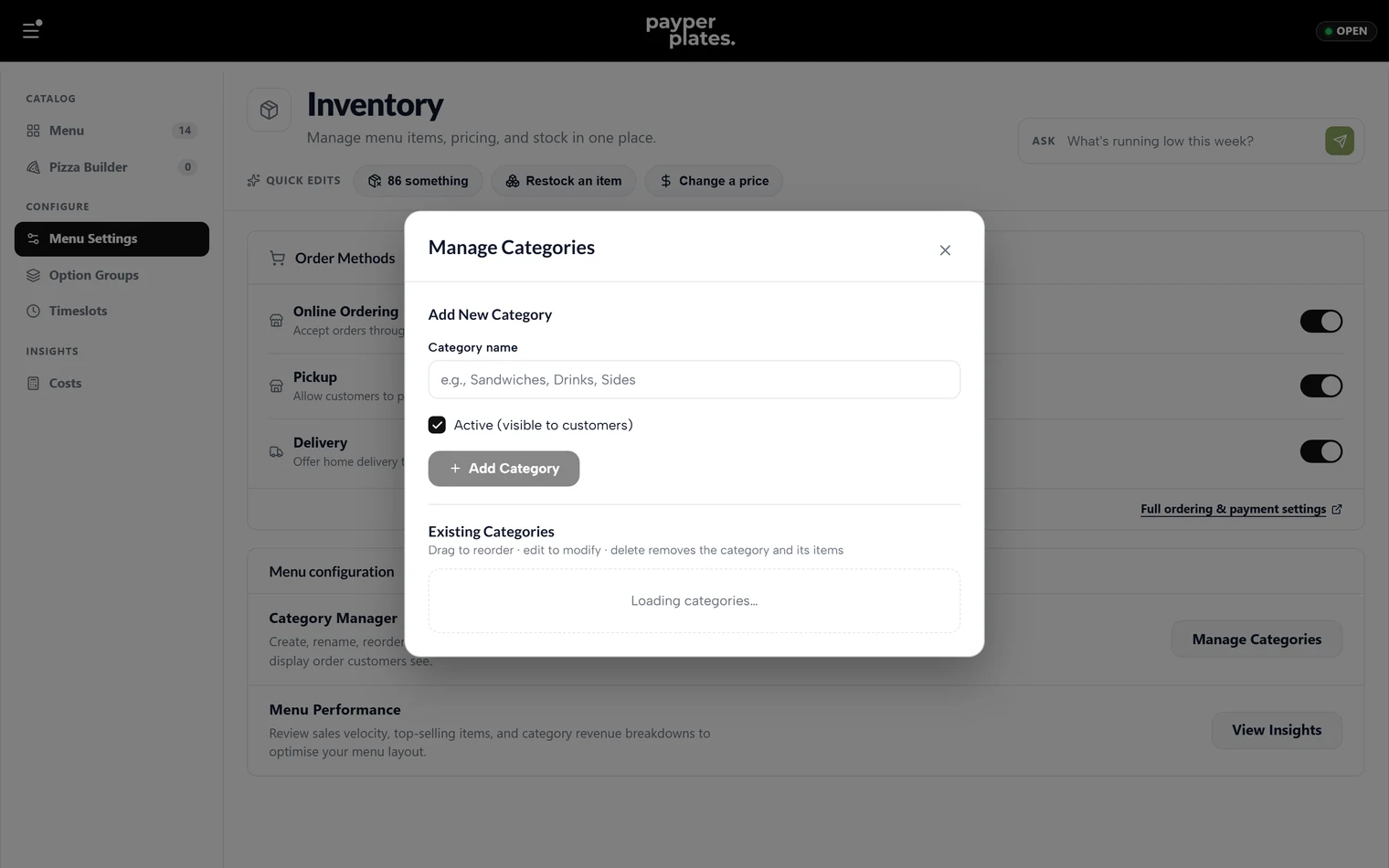
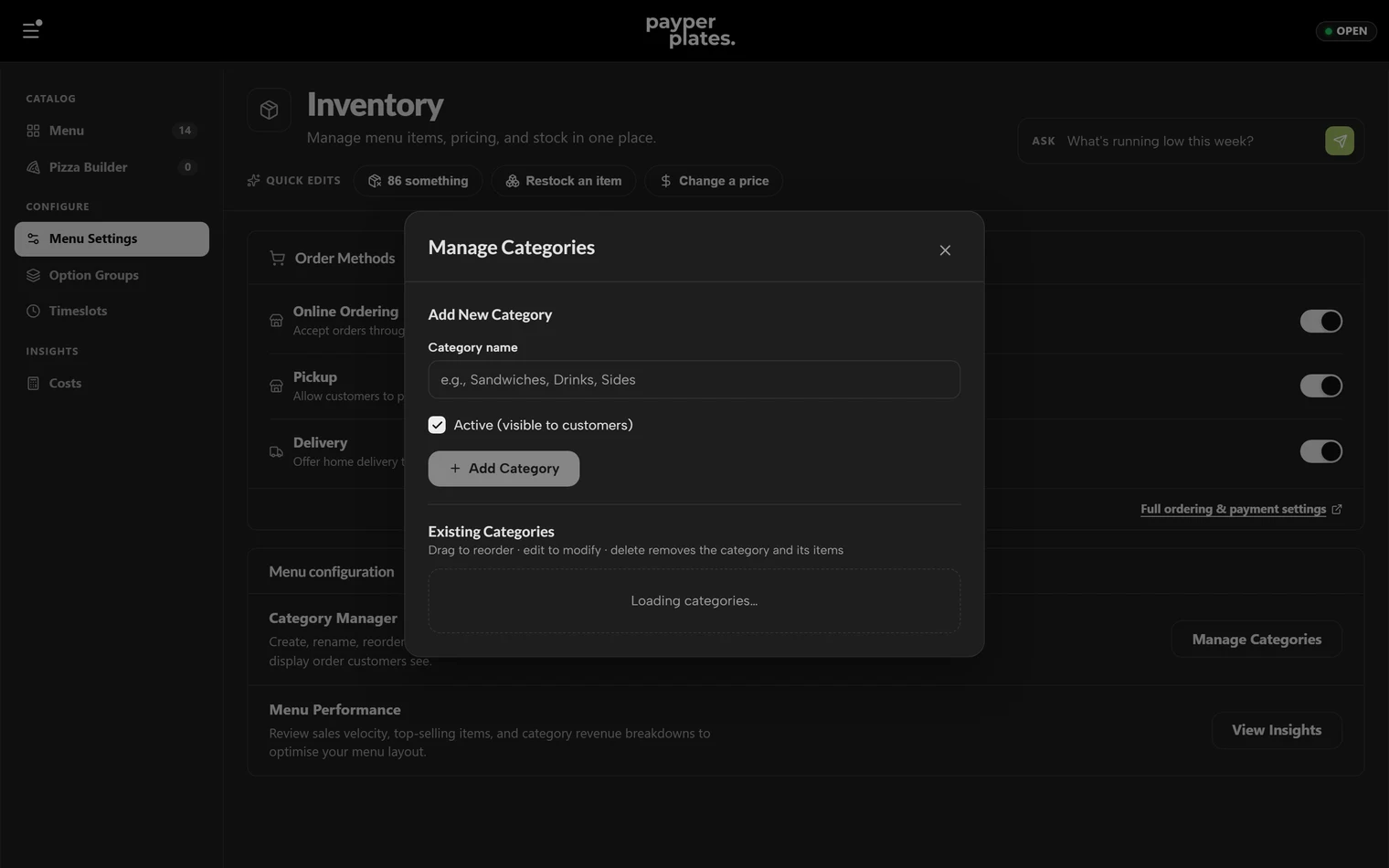
Order your categories
The order of your categories is the order customers see them on your menu. Put your most popular or highest-margin sections near the top, where they get seen first. Reorder categories any time; the storefront updates to match.
Assign items to categories
Each item belongs to one category. Set an item's category when you create it, or change it later from the item. An item with no category can be hard for customers to find, so give every item a home.
Rename or hide a category
Rename a category any time — the change flows through to every item in it. If you want to take a whole section off the menu for a while (a seasonal menu you are not running right now), you can hide it rather than delete it, so it is ready to bring back later.
Deleting a category
Delete a category only when you are sure you no longer need that section. Move or remove its items first so nothing is left without a home. For anything seasonal or temporary, hiding is safer than deleting.