

SEO & discovery
Control how your storefront appears in search results and when shared on social media.
The SEO & Discovery settings control how your storefront shows up in Google, how it looks when someone shares your link, and whether search engines can find you at all. You set them under Settings → SEO & Discovery. Every field has a smart default, so you only need to fill in what you want to override.
Search appearance
This is how your storefront looks in a Google result:
- Page title — the clickable headline in search results. Left blank, it uses a sensible default built from your restaurant name.
- Meta description — the short paragraph under the title. Left blank, it uses your restaurant's description.
Write these for a customer scanning results: say who you are and what they can order.
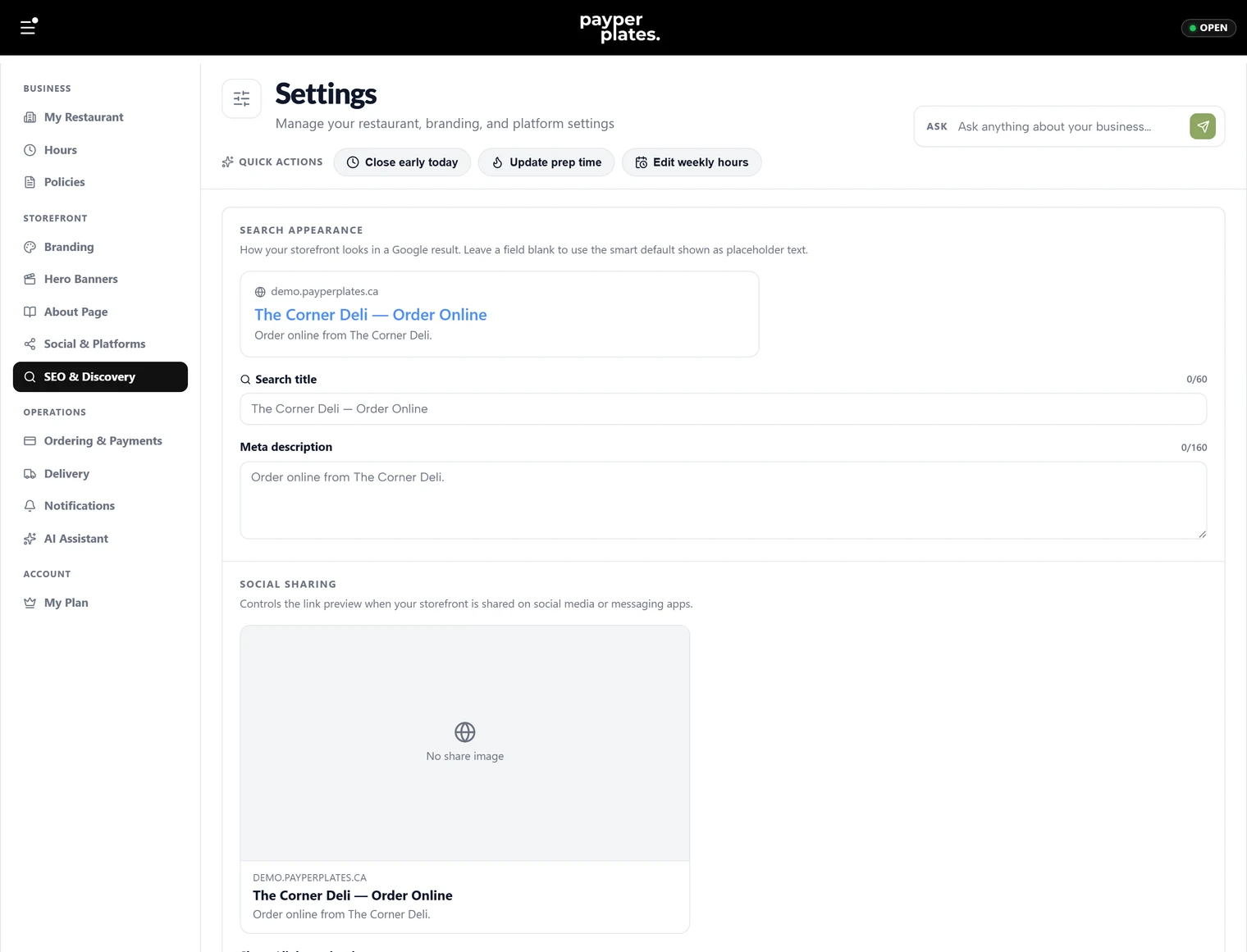
Social sharing
This controls the preview card that appears when your menu link is shared on social media or in a messaging app:
- Share / link preview image — the image shown with the link (around 1200 × 630 works best).
- Title and description for the shared card.
A good preview image and title noticeably lift how often a shared link gets tapped.
Search visibility
The Visible to search engines switch controls whether search engines are allowed to list your storefront. Leave it on so customers can find you on Google. You might turn it off only while you are still setting up and not ready to be found.
Google & analytics (optional)
If you run your own Google accounts, you can connect them here — a site verification token, a Google Analytics measurement ID, and Google Ads tags. These are optional; leave them blank to use the PayperPlates platform defaults. Fill them in only if you actively use your own Google tools.
Discovery files
Some technical files that search engines and AI crawlers read are generated automatically from your business details and kept up to date as you edit your settings. There is nothing to configure here — this is shown so you know it is handled for you.