

Dashboard & Quick Actions
Find your way around the admin dashboard and use the Quick Actions bar to run your shop in one tap.
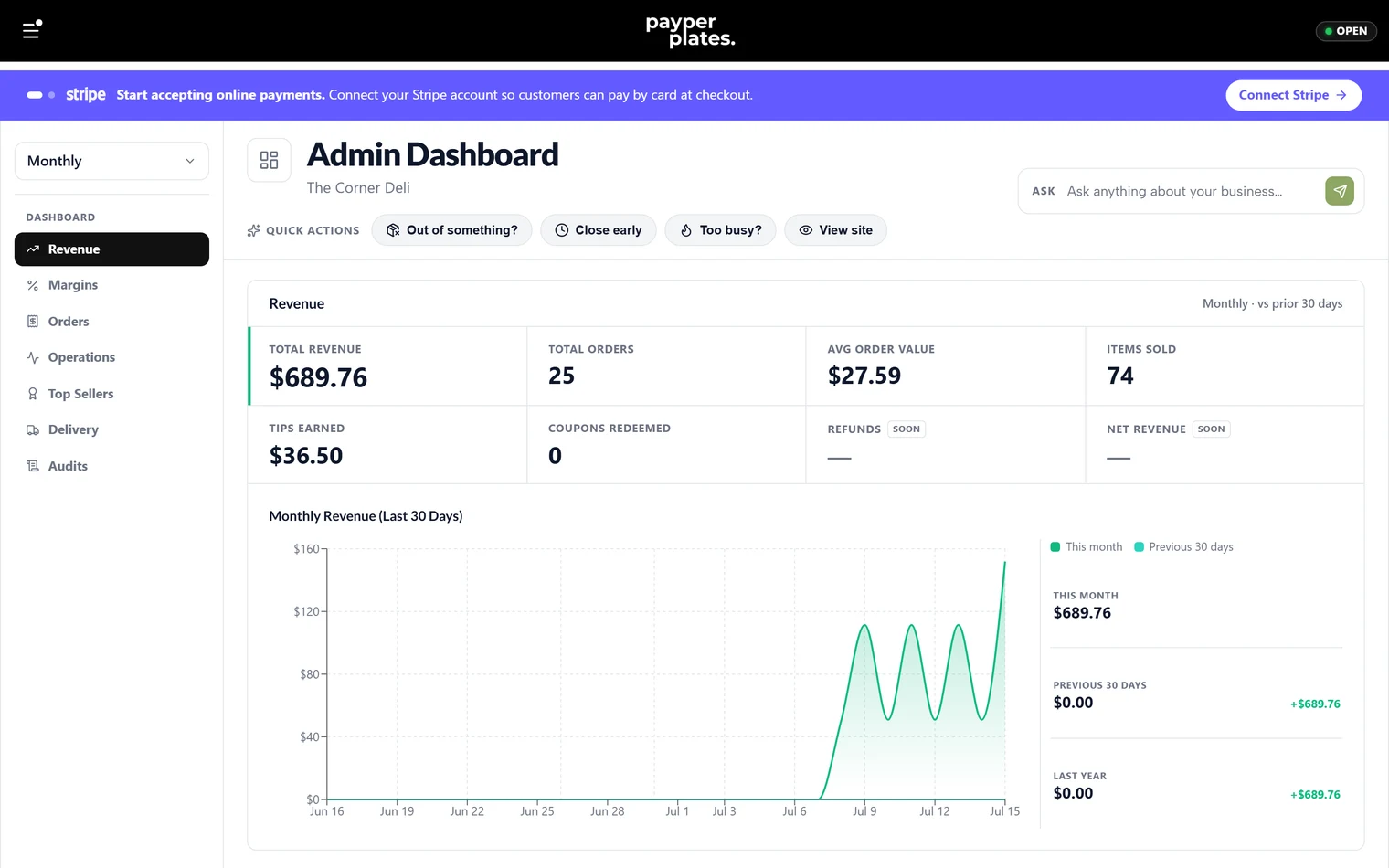
The admin dashboard is your back office. It is where you manage your menu, watch orders come in, change your hours, and see how sales are going. This guide gives you the lay of the land.
Getting to your dashboard
Sign in from your storefront and open the menu in the top corner. As an admin, manager, or staff member you will see admin links that customers never see. The main areas are:
- Dashboard: today's sales and orders at a glance.
- Orders: the live order board. See Managing orders.
- Open & Close: your opening review and end-of-day close-out. See Open & Close.
- Inventory: your menu, pizza builder, option groups and timeslots.
- Drivers: the Driver Hub for delivery dispatch. See Delivery and drivers.
- Support: customer cases about their orders. See Support and issue routing.
- Reports, Promos, Staff and Settings.
Which of these you see depends on your role. Staff go straight to the Orders board. See Roles and permissions for who can access what.
While your restaurant is being set up, the dashboard also shows a Finish setting up card. See the Going-live checklist.
The Quick Actions bar
At the top of your pages sits the Quick Actions bar, a row of one-tap shortcuts for the things you do in the middle of a busy shift. Each page has its own set:
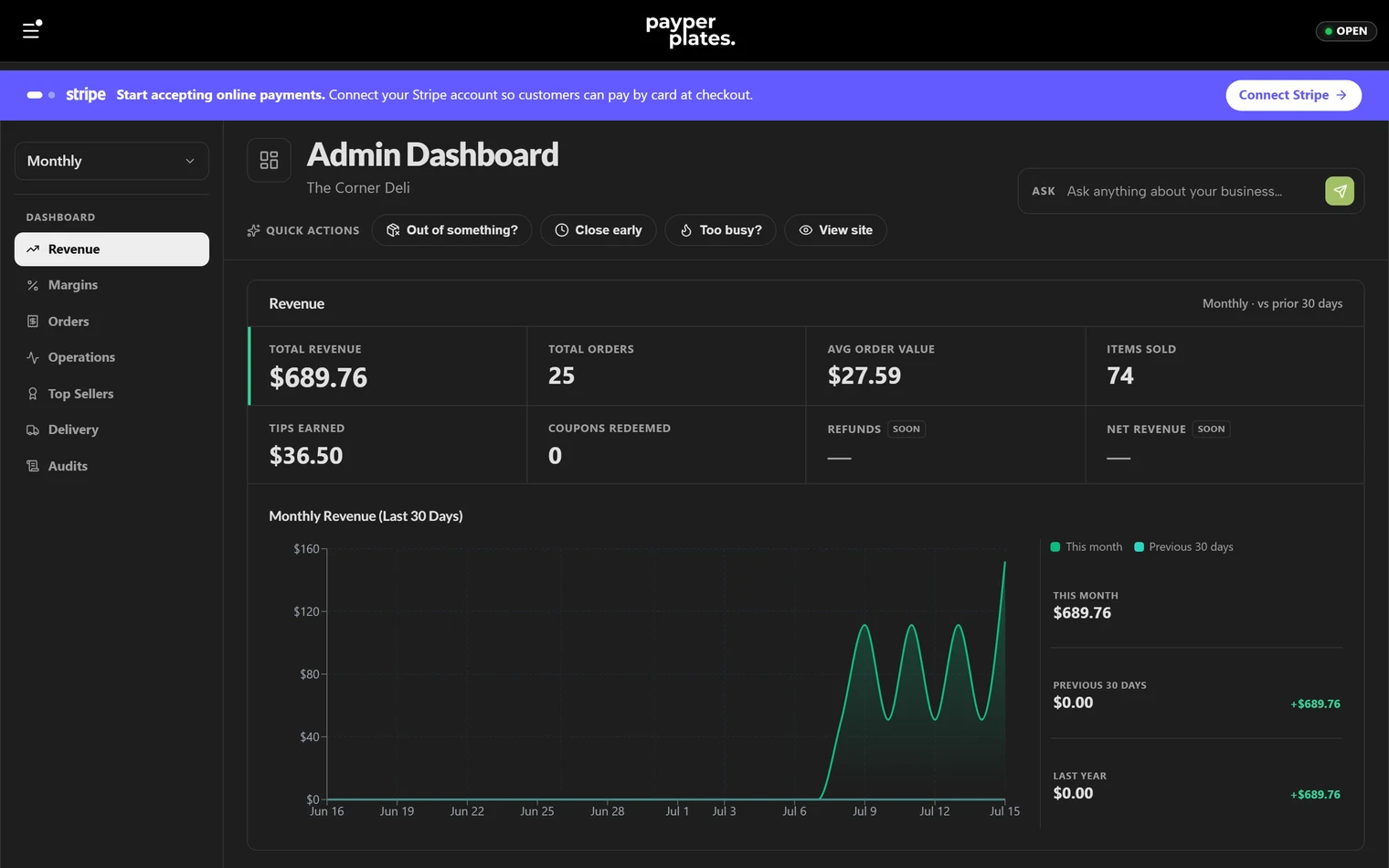
- Dashboard: Out of something? takes an item or ingredient off the menu (Stock and 86ing), Close early sets an earlier close for today only (Hours), Too busy? raises your prep time, and View site opens your storefront.
- Inventory: 86 something, Restock an item and Change a price.
- Hours: Close early today, Update prep time and Edit weekly hours.
- Promos: Pause / resume a coupon, plus quick questions such as "Which promos are live?".
- Reports: one-tap questions for the assistant, such as This week's sales, Compare to last week, Top sellers this month and Slowest day.
Each action opens a short step-by-step prompt, confirms what you are about to do, and applies it. Nothing changes until you confirm.
The Ask box
Next to the Quick Actions is an Ask box that hands your question to the AI assistant. Type something like "what were my sales yesterday?" or "raise the cheeseburger to $15" and the assistant answers or proposes the change for you to confirm. It follows you from page to page. See Merchant assistant.
What's new
When PayperPlates ships an update, a short "What's new" note appears the first time you sign in after the release. You can reopen it any time from the "What's new" link in the footer of your admin pages.