

Merchant assistant
The AI assistant in your admin dashboard — what it can answer, what it can change for you, and how to control it.
Every restaurant on PayperPlates has a built-in AI assistant in the admin dashboard. It answers questions about your business, looks up your data, and can make changes for you — all from a chat you can open on any page.
Opening the assistant
Open the assistant from the Ask box in the Quick Actions bar or the "Ask AI" link in your admin footer. It follows you as you move between pages, so you never lose the conversation.
What it can answer
Ask it plain questions and it answers from two places:
- Your business data — "what were my sales yesterday?", "which items are low on stock?", "how many orders today?". It reads your live orders, revenue, menu, and hours to answer.
- These help guides — "how do I set up a size?", "how do I close early tonight?". It searches this documentation and answers, with a link to the full guide.
It can also inspect menu timeslots. Ask "what are my breakfast hours?" or "is the breakfast sandwich assigned to Breakfast?" to check the live configuration.
When you first open the assistant it also checks for operational issues such as old active orders, low stock, temporarily unavailable items, missing meal-planning details, and customer-assistant failures. Select an insight card to investigate it in chat.
Support without calling PayPerPlates
Merchant Assist is the first support channel for platform how-to questions. It searches the current help guides, checks the restaurant's live configuration, and gives the concrete next step. Ask it questions such as:
- "How do I add breakfast-only items?"
- "Why is this item unavailable?"
- "How do I set up a coupon?"
- "Do I have any open customer support cases?"
Customer complaints about orders, refunds, food, pickup, or delivery belong to the restaurant. Merchant Assist can summarize that queue, and your team replies from Support in the admin menu.
If the documentation and live checks cannot resolve a genuine PayPerPlates bug, outage, merchant-account or platform-billing problem, privacy concern, or security issue, Merchant Assist can create a platform case after you explicitly ask it to. Routine support stays in the assistant and support inbox; phone escalation is reserved for active major incidents.
What it can change
The assistant can also make changes for you — this is what makes it more than a search box. You can say things like:
- "Raise the cheeseburger to $15."
- "Move the breakfast sandwich to the Breakfast timeslot."
- "Rename House Burger to Classic Burger and update its description."
- "We're out of wings tonight."
- "Close at 8 tonight instead of 10."
- "Bump prep time to 45 minutes."
Every change is confirmed
The assistant never changes anything without your say-so. When you ask it to make a change, it shows you exactly what it is about to do and waits for you to confirm. Nothing happens until you approve it, so you are always in control. Changes it makes are recorded, so you and your team can see what was changed and when.
Managing conversations
Use the history button in the assistant header to switch between your saved conversations. You can rename a conversation, archive it when it is no longer active, or permanently delete it after a confirmation.
Turning it on or off
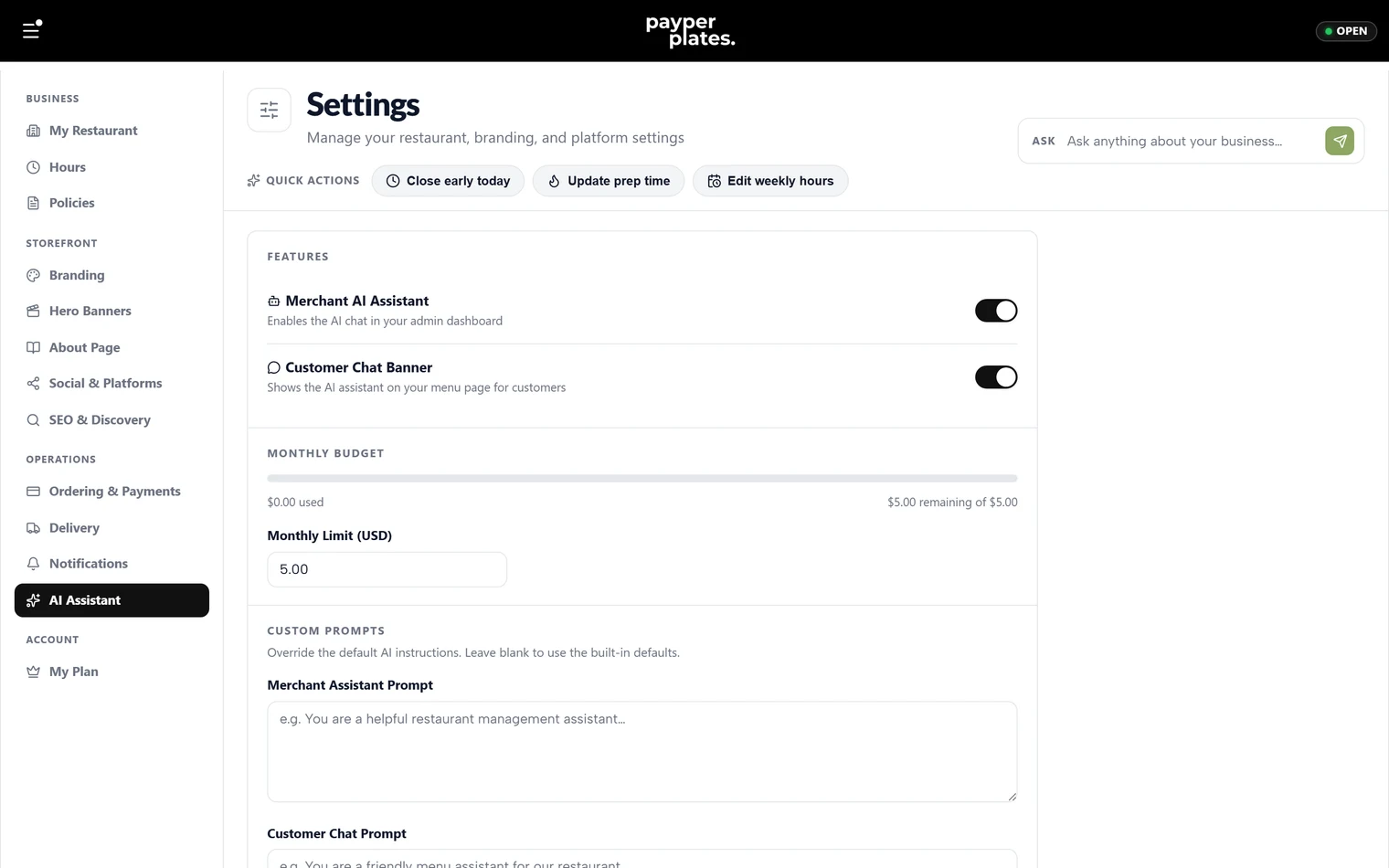
The assistant is controlled under Settings → AI Assistant. The Merchant AI Assistant switch enables or disables the admin chat. You can leave it on for your whole team or turn it off entirely.
Ordering data: your opt-in
Some answers need your restaurant's order records: sales and revenue questions, best sellers, order history, and anything about a particular customer. To answer them, the assistant has to send those records to our AI provider, so it only does that after you opt in.
Under Settings → AI Assistant → Ordering data you can see exactly what's covered: order history, statuses and totals; sales and revenue reports; and customer names, emails and phone numbers. Opt in there and the page shows the date you did.
- Until you opt in, the assistant still helps with your menu, hours, settings and these guides. It tells you when a question needs the opt-in.
- You can withdraw at any time, and those tools stop immediately. Withdrawing doesn't delete data that was already processed.
- If our disclosure changes, the page shows Renewal needed. Review it and opt in again to restore those tools.
Your monthly budget
AI usage runs against a monthly budget you set in US dollars, anywhere from $1 to $500, on the same settings page. Customer Chat Limit sets how much of that the customer assistant may use. Recent usage shows what the merchant and customer assistants have each used. When you reach your limit, the assistant pauses until next month or until you raise the budget.
Custom instructions
If you want the assistant to talk or behave a certain way, you can add your own instructions in the Merchant Assistant Prompt box under AI settings. Leave it blank to use the built-in defaults, which are tuned for restaurant management.
Keeping its knowledge current
The assistant reads operational menu facts directly from your current restaurant data, so price, stock, availability, timeslot, and description changes are available without a menu re-index step. PayPerPlates help guides are maintained through the platform documentation index.