

Hours
Set your weekly opening hours, add special hours for holidays and one-off closures, and close early for a single day.
Your hours tell customers when you're open, and they control when your storefront takes orders. Set them under Settings → Hours before you go live. Wrong hours either turn customers away or take orders you can't fill.
Weekly hours
Set an opening and closing time for each day of the week, and mark the days you're closed as Closed. The Weekdays, Weekend and All days shortcuts copy one set of times across several days at once.
Late nights work as you'd expect: a closing time after midnight keeps the previous evening's service going. Setting the same opening and closing time means open 24 hours.
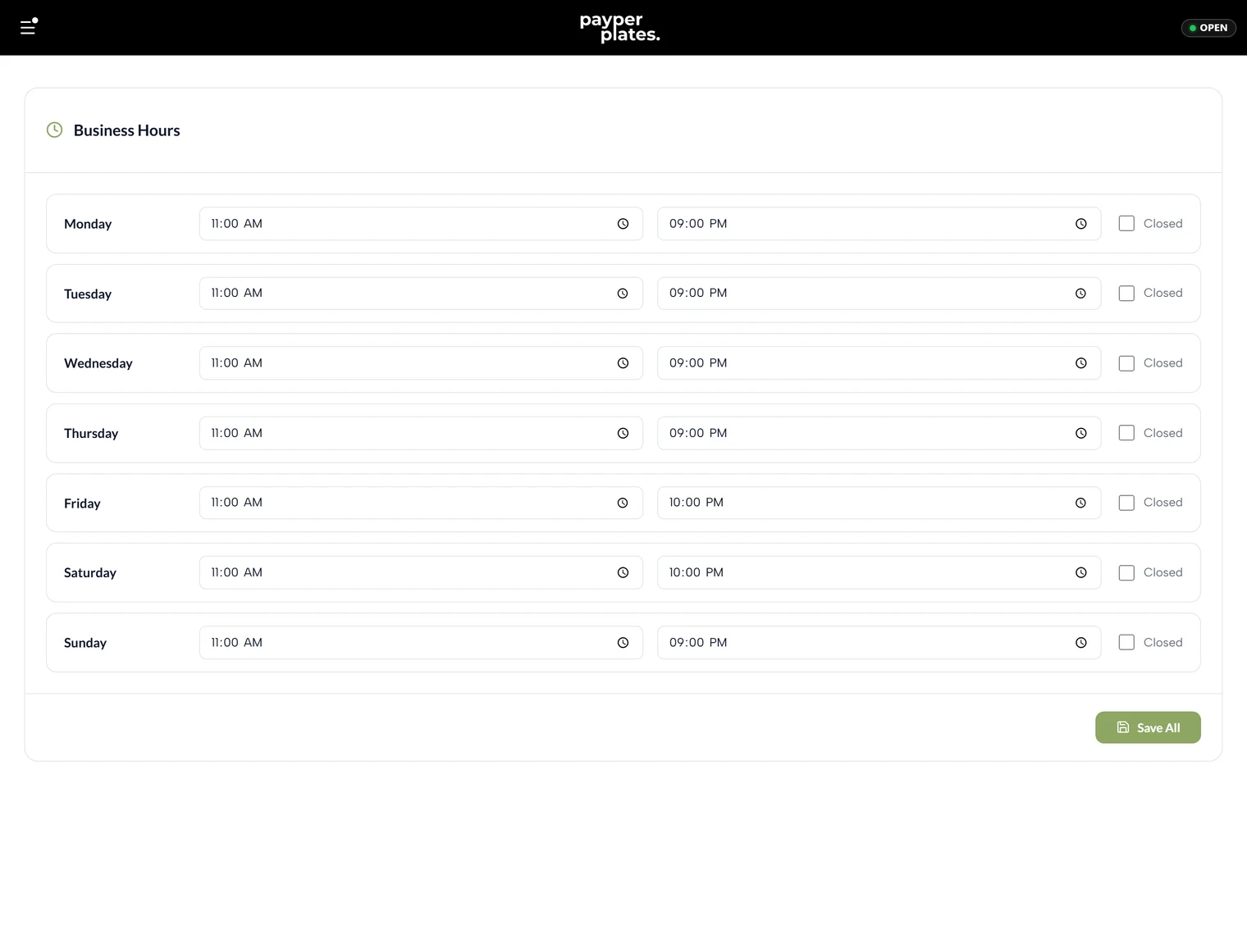
Save with Save Hours. Your storefront uses these hours to show whether you're open right now and to accept orders. With preorders on, customers can still schedule orders while you're closed.
Holiday and special hours
For holidays, private events or a day you're closed for repairs, add a special hours exception instead of changing your weekly schedule:
- Under Holiday and special hours, select Add exception.
- Pick the date and give it a label, such as "Thanksgiving".
- Either choose Closed for this service day, or enter the hours you'll open that day.
- Select Save exception.
Exceptions apply to actual dates in your restaurant's timezone. They change checkout and your public Hours & Location page for that day only, and they don't repeat, so add next year's holidays when the time comes. Restore weekly hours removes an exception and puts that day back on your normal schedule.
Close early for one day
To close early tonight because you're slammed or short-staffed, don't edit your weekly hours. You'd have to remember to change them back. Use the Close early quick action at the top of your admin pages instead. It sets an earlier closing time for today only.
You can also tell the assistant "close at 8 tonight instead of 10" and confirm. See Merchant assistant.
Location note
The Location note shows as a highlighted note on your public Hours & Location page. Use it for anything customers should know before they visit, such as "We're a ghost kitchen: pickup and delivery only, no dine-in." Leave it blank to hide it.
Check it from the customer side
After setting your hours, open your storefront and confirm the open or closed status matches reality, especially around opening and closing time.